
NEWS
Windows 11 Revives a Sticky Keys Off Switch From 1995
Microsoft is testing a Sticky Keys checkbox it considered in 1995, when a pinball game and a lab hotkey first collided on Windows.

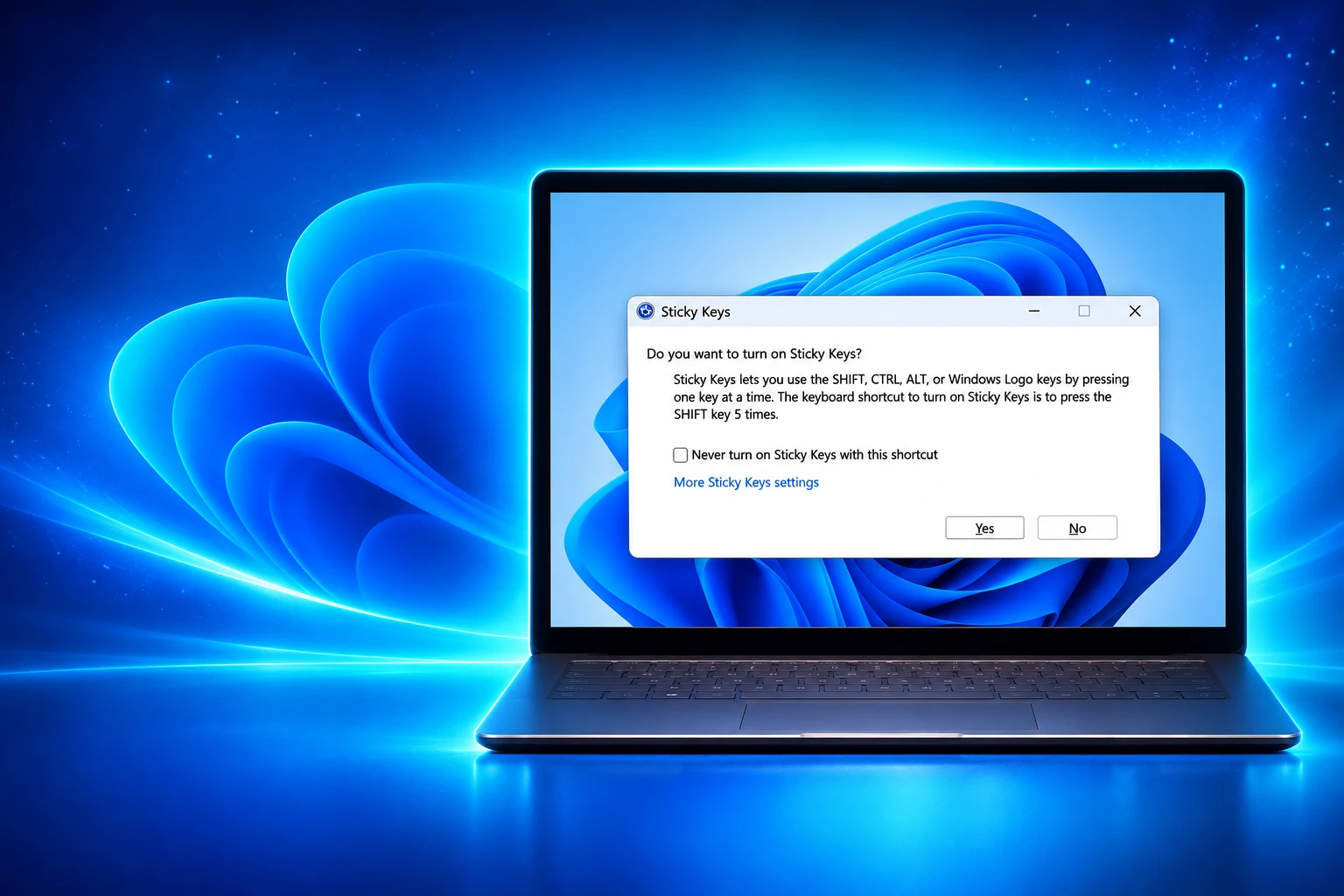
Windows 11 Insider builds now put a permanent off switch on the Sticky Keys prompt that appears after five Shift presses. The box is rolling out in preview, and it is the control Microsoft weighed in 1995 and left off the dialog.
Sticky Keys itself stays in Settings. The change only makes it easy to kill the keyboard shortcut from the same window that has been interrupting games and design apps for 31 years.
Windows 11 Puts an Off Switch on Sticky Keys
The prompt still asks whether you want to turn Sticky Keys on. In current preview builds it adds a check box, reported as “Never turn on Sticky Keys with this shortcut,” above the link into full settings. Tick that box and decline the feature, and five more Shift taps do not bring the dialog back.
Jen Gentleman, who works on the Windows engineering team on Settings, the taskbar, and input, posted the change on 7 November 2026. She wrote that Microsoft was adding the ability to turn the prompt off from the pop up itself, and that it had started rolling out to Insiders the day before, pointing testers at the Experimental Build 26340.9882 notes.
We're adding the ability to permanently turn off the prompt to enable sticky keys from the pop up itself pic.twitter.com/kWBYmGPA6M
— Jen Gentleman 🌺 (@JenMsft) November 7, 2026
Stephen Lines, writing for the Windows Insider Program on 6 November 2026, listed the matching Windows 11 Insider Preview builds as Beta 26320.9876 and Experimental 26340.9882. Filter Keys, which uses its own hold-Shift shortcut, is getting the same kind of box. Microsoft has not said when either dialog reaches the release version of Windows 11, and preview features can still change or stall.
WHAT WE KNOW
- The builds: The option is appearing in Beta 26320.9876 and Experimental 26340.9882, both dated 6 November 2026.
- The control: A check box on the Sticky Keys prompt, and a matching one on Filter Keys, can stop those shortcuts from asking again.
- The feature: Sticky Keys and Filter Keys remain available under Settings, Accessibility, Keyboard.
- Retail PCs: The Settings toggle that disables each shortcut already exists on current Windows 11.
WHAT IS UNCONFIRMED
- Retail timing: Microsoft has not named a Windows 11 release that will carry the new prompt.
- Who sees it: Experimental flights often land in stages, so some Insider PCs on 26340.9882 may not show the box yet.
The louder complaint was never the accessibility feature. It was a confirmation window that returned every time Shift was mashed, while the real off switch sat a few Settings pages away.
Space Cadet Pinball and the 1995 Visibility Choice
Charles Oppermann joined Microsoft in 1994 as program manager for Windows accessibility and later described how the prompt was born. He said he wrote the dialogs in early 1995 after Brad Silverberg’s kids kept turning Sticky Keys on while playing Space Cadet Pinball. Silverberg led Windows 95.
Oppermann’s team “considered a checkbox back then.” They left it off so Windows accessibility features would stay visible. A Settings link arrived later, in Windows 98 or in the line of work that became Windows 2000. Users could already disable the hotkey in Control Panel. The missing piece was doing that from the interruption itself.
Silverberg later recalled a hard session with Massachusetts officials over Windows 95 access. Massachusetts and Missouri had pushed the company, and the Windows 95 Resource Kit described the confirmation dialog as a precaution against accidental use, with a path to disable the hotkey for good. The 2026 box is that path, moved to the moment Shift fires.
Space Cadet was only the first famous collision. Games still bind Shift to sprint, walk, or item swaps, and a system dialog in the middle of that bind still costs a fight. The 1995 choice was deliberate, not a forgotten setting.
From a Wisconsin Lab to Every Windows PC
The five-Shift gesture is older than the prompt. It comes from Trace Center accessibility research at the University of Wisconsin, work now housed at the University of Maryland. Gregg Vanderheiden started that lab after building the Autocom communicator in 1971 for a friend with cerebral palsy.
Charles Lee, a mechanical engineer who joined Trace in 1984, coded a DOS tool he called 1-Finger in the winter of 1985-1986. It took over as the keyboard driver. Press Shift five times and modifier keys became sticky, so a person using one finger or a mouthstick could enter Ctrl, Alt, and Delete in sequence. The tool was renamed Sticky Keys to sit beside Filter Keys and Repeat Keys.
Apple shipped a version first. Sticky Keys was in Macintosh Easy Access by 1987 and in System 6 in April 1988. Microsoft bundled an early Trace build in the Access Pack add-on for Windows 2 and 3. Greg Lowney, then a one-person accessibility effort inside Microsoft, pushed to get the tools into the operating system. Windows 95 shipped Sticky Keys, Filter Keys, and Toggle Keys as standard.
THE STICKY KEYS TIMELINE
- 1971: Vanderheiden and classmates build the Autocom, the project that leads to the Trace Center.
- Winter 1985-1986: Lee writes 1-Finger in assembly; Shift five times turns the modifiers sticky.
- April 1988: Apple includes Sticky Keys in System 6 Easy Access.
- 1994: Oppermann joins Microsoft to run Windows accessibility.
- Early 1995: He writes the confirmation dialogs after Space Cadet Pinball keeps tripping the hotkey.
- 1995: Windows 95 ships Sticky Keys in the operating system, with Shift five times as the emergency hot key.
- 6 November 2026: Insider Beta 26320.9876 and Experimental 26340.9882 add a check box that can silence that hotkey from the prompt.
Jeff Prosise, writing utilities for PC Magazine, independently shipped a DOS latch tool called STAYDOWN in April 1988 after IBM’s wide Model M made some chords a two-hand stretch. The idea was in the air. Trace’s five-Shift turn-on is the one Windows still watches.
What Sticky Keys Still Does in Windows 11
With the feature on, you press a modifier once and it latches until the next ordinary key, so Ctrl then S saves a file. Press the modifier twice and it locks until you tap it a third time, which is the mode that feels like a stuck Caps Lock. Microsoft’s current list still treats five Shift presses as the way to turn that behavior on or off from the keyboard.
The Settings page keeps extra switches, including the one that turns Sticky Keys off when two keys are pressed at the same time. That control is for people who want the feature until they start typing chords again. This is not new. The new work is only where the “stop asking” choice lives.
WINDOWS ACCESSIBILITY HOTKEYS
| Press this | What Windows toggles |
|---|---|
| Shift five times | Sticky Keys |
| Right Shift for eight seconds | Filter Keys |
| Num lock for five seconds | Toggle Keys |
| Left Alt+left Shift+Print screen | High Contrast |
| Left Alt+left Shift+Num lock | Mouse Keys |
Those shortcuts are still documented for Windows 11 and Windows 10. They were designed as emergency on-ramps, not as gaming binds. Full-screen apps still lose focus when one of them fires a dialog over the top.
An Emergency Hot Key That Still Interrupts Games
Microsoft’s own Windows 95 accessibility guide called Shift five times an emergency hot key for people who type with a single finger or a mouthstick. The SHIFT key five times hot key flag is SKF_HOTKEYACTIVE on the STICKYKEYS API, which Microsoft lists as present in Windows 95 or later and in Windows NT 3.5 or later. SKF_CONFIRMHOTKEY is the bit that puts a confirmation dialog on that gesture. SKF_HOTKEYSOUND is the siren. SKF_TWOKEYSOFF is the two-key exit still exposed in Settings.
That API is why the prompt feels immortal. Windows is not guessing. It is still honoring a flag set so a user who cannot hold two keys can summon help without opening Control Panel. The 1995 team kept the confirm box in the path so accidental use would not silently latch Shift, and so the feature would be seen.
Closing that path from the prompt is a gift to anyone who sprints with Shift. It is also a narrower on-ramp for the next person who needs Sticky Keys and only finds it because a dialog appeared. They can still open Settings, or press Windows key+U for Accessibility. They just lose the interrupt that has been doing discovery work since 1995.
How to Disable the Sticky Keys Shortcut Today
You do not need an Insider build to stop five Shift presses from opening the prompt. On release Windows 11 the shortcut is a separate switch from the feature itself, and it is set on each PC, not through a Microsoft account sync.
TURN THE SHORTCUT OFF TODAY
- Open Accessibility: Press Windows key+U, or go to Settings, then Accessibility, then Keyboard.
- Open Sticky Keys: Select the Sticky Keys row to expand it, rather than flipping the main feature switch if you only want the shortcut gone.
- Kill the hotkey: Turn off Keyboard shortcut for Sticky keys so five Shift presses no longer open the prompt.
- Repeat for Filter Keys: In the same Keyboard page, expand Filter Keys and turn off its shortcut if an eight-second hold keeps stealing focus.
If you do want Sticky Keys, leave the feature on and use the two-key exit so a normal chord does not leave a modifier latched. The Insider check box is a faster route to the same shortcut switch, not a new accessibility mode.
Filter Keys and the Eight-Second Hold
Filter Keys ignores brief or repeated keystrokes, which helps with tremor and with keys that cannot be released quickly. Microsoft’s accessibility shortcut list still turns it on and off with Right Shift for eight seconds. Hold long enough in a game or a hold-to-move bind, and the sibling prompt appears.
The preview builds give that dialog the same permanent dismiss control. Until that ships, the Filter Keys shortcut toggle on the Keyboard settings page is the clean fix. SlowKeys, RepeatKeys, and BounceKeys, the older names under the Filter Keys umbrella, stay in the feature set; only the surprise prompt is being tamed.
On a preview PC, the window Oppermann wrote so people would notice Sticky Keys can now retire its own hotkey. On the Windows 11 already on most desks, Accessibility, Keyboard still does that job without joining Insider.

One UI 9.5 Beta Puts the Galaxy S26 on Last Year’s Clock

DBS Puts a 24/7 USDC Window Inside the Bank

European Startups Head for $81 Billion as First Checks Shrink

US Stocks Lost $1.3 Trillion Before Nvidia’s Beat

Home Depot Bets on Finance Chief Richard McPhail as CEO

Aramco Crash Kills 14 Two Days After Oil Restart

Salah Captained Egypt to Their First World Cup Win

Zelda’s 40th Switch 2 Ships Without a Zelda Game

Apple Labor Day Deals Hide June’s Memory Price Hike

El Niño Puts Israel’s Needed Winter Rain on a Flood Clock
-
 BUSINESS5 months ago
Aramco Crash Kills 14 Two Days After Oil Restart
-
 NEWS6 months ago
Salah Captained Egypt to Their First World Cup Win
-
 GAMING2 months ago
Zelda’s 40th Switch 2 Ships Without a Zelda Game
-
 NEWS3 months ago
Apple Labor Day Deals Hide June’s Memory Price Hike
-
 NEWS4 months ago
El Niño Puts Israel’s Needed Winter Rain on a Flood Clock
-

 GAMING2 months ago
Palworld 1.0.4 Adds Palpedia Search After the 1.0 Launch
-

 NEWS4 months ago
Saudi Visa Routes Split Nigerian Travelers Into Two Speeds
-

 BUSINESS9 months ago
BAE’s 60-Year Saudi Franchise Now Runs Through Taif