
NEWS
Windows 11’s Local PC Transfer Lasted 15 Months
Microsoft pulled Windows 11 PC-to-PC Migration after 15 months and now sends new PCs through Windows Backup, whose free OneDrive tier is 5 GB.

Microsoft has removed PC-to-PC Migration from Windows 11 and now sends people to Windows Backup, which stores files in OneDrive. The cut was listed in the September optional package KB5124010. Regular PCs got it with the October 13, 2026 Patch Tuesday update, KB5127648.
The company has not said why the local copy was pulled. The support page that once walked through a Wi-Fi or Ethernet pairing now names Windows Backup as the replacement.
The Support Page Now Points Straight at OneDrive
Microsoft’s transfer guide still describes a pairing flow, then opens with a hard stop. The banner tells readers this feature is no longer available and to use Windows Backup and Restore instead.
PC-to-PC Migration is no longer available. This feature, introduced through a phased rollout, previously allowed you to transfer files and settings directly from your previous PC when setting up a new Windows PC. To back up and restore your files, settings, and other supported items when moving to a new PC, use Windows Backup.
Microsoft, Windows 11 KB5124010 release notes
That wording sits in the September 22, 2026 preview update for versions 26H2, 25H2 and 24H2, which raised those branches to builds 26300.9550, 26200.9550 and 26100.9550. Microsoft called the change a gradual rollout, so some PCs lost the button later than others.
The same preview added Camera roll backup, a Settings path that saves phone photos to OneDrive. The package that retired a LAN copy also grew another cloud photo pipe.
October 13, 2026 did double duty for 24H2. Home and Pro editions of that version reached end of updates on that date, and KB5127648 was the security package that carried the preview’s Backup change to everyday machines. Enterprise and Education 24H2 stay in support until October 12, 2027.
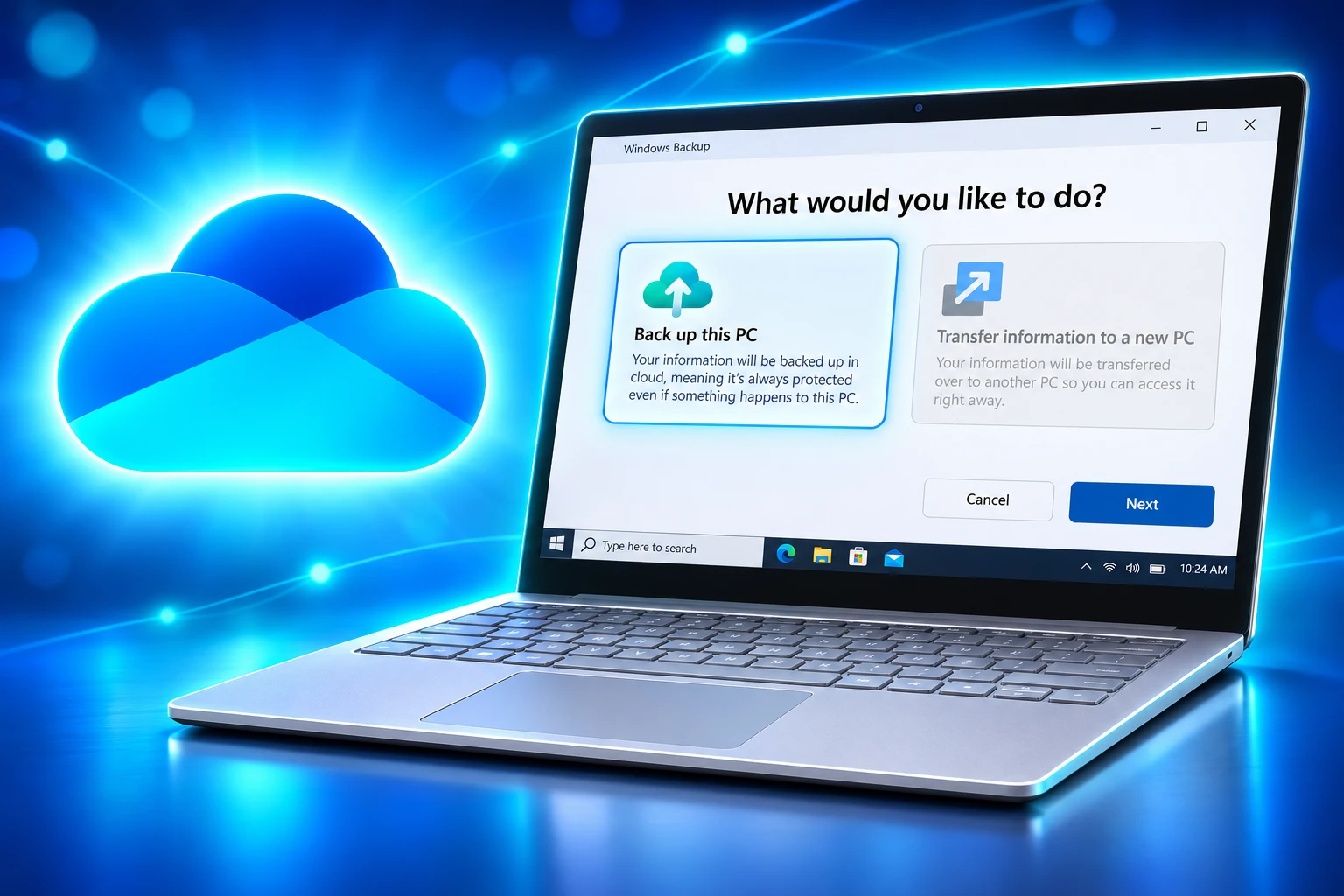
Microsoft Started the Rollout in June 2025
The Windows Insider Program Team, writing on June 19, 2025, said it was beginning the rollout of a new PC-to-PC migration experience in Windows 11 version 24H2 Release Preview. That build was 26100.4482, shipped as KB5060829.
The post promised landing and pairing pages inside the Windows Backup app, then a full copy of files and settings during new-PC setup in a later update. “We are releasing in phases for a smooth experience and will provide more details soon,” the team wrote.
That local path lasted 15 months from that blog post to the September 22, 2026 notes that declared it gone. Windows Easy Transfer, the older wizard that moved files over a cable, a network or a flash drive, never shipped in Windows 10. The 2025 tool was the first consumer-facing local copy Microsoft had put back in years. It is now gone too.
THE 15-MONTH LIFE OF THE TOOL
- June 19, 2025: Begins a phased PC-to-PC migration experience in the Windows Backup app on Windows 11 version 24H2 Release Preview (Build 26100.4482, KB5060829).
- September 22, 2026: Lists PC-to-PC Migration as no longer available in KB5124010 for Windows 11 versions 26H2, 25H2 and 24H2.
- October 13, 2026: Carries the change to regular PCs in Patch Tuesday update KB5127648, the same date 24H2 Home and Pro reach end of updates.
Microsoft has not said the pairing screens will return under another name, and the support page offers no timetable.
The Transfer Skipped Apps, Passwords and BitLocker
The retired wizard copied documents, photos, videos and other files saved across folders or drives, plus wallpaper, themes and other personalization. Both PCs had to sit on the same Wi-Fi or LAN, stay plugged in, and finish the latest cumulative updates. The old machine could run Windows 10 or Windows 11. The new one had to run Windows 11, version 2024 or later.
Pairing used the old PC’s name plus a one-time code typed into Windows Backup. A folder list then appeared so you could drop items that would not fit. It was a files tool, not a clone of the old computer.
The new PC still had to sign in with a Microsoft account that did not already hold a backup. The local copy avoided OneDrive’s quota because the bits crossed the home network. It did not avoid an account.
WHAT THE OLD TOOL LEFT BEHIND
- Installed programs: Applications on the previous PC did not copy, and system folders such as Program Files, Program Data and Temp were excluded.
- Sign-in secrets: Saved passwords and other credentials stayed on the old machine.
- OneDrive data: Files already in OneDrive were skipped; Microsoft said to sign in on the new PC to see them.
- BitLocker drives: Encrypted volumes had to be decrypted before those files could join the transfer.
Anyone who treated the wizard as a full PC move was already going to reinstall software. What they lose now is the guided bulk copy that did not care how many gigabytes sat in Downloads.
What Windows Backup Restores on a New PC
Windows Backup is the path Microsoft names in the release notes. You sign in with a personal Microsoft account, pick folders, and those folders sync to OneDrive. On a new PC, the same account can restore that backup during setup.
The folders you can toggle are Desktop, Documents, Pictures, Videos and Music. Microsoft’s Backup guide says a free Microsoft account comes with 5 GB of OneDrive cloud storage, with more storage sold on top. A promotional screenshot for the app shows 4.5 GB of that free allowance already in use, which leaves little room for a Documents tree, let alone years of photos.
Backup does bring extras the LAN tool never claimed. It can remember installed apps and help restore them from Microsoft Store, save Wi-Fi profiles (WPA) and some web credentials, and restore a catalog of settings. Apps still need a fresh install from those pins. Work and school accounts do not get folder sync or the Remember my apps switch.
HOW THE FOUR PATHS COMPARE
| Method | Where files go | Size limit | Account needed | What else comes back |
|---|---|---|---|---|
| PC-to-PC Migration (removed) | Local Wi-Fi or Ethernet | Free space on the new PC | Microsoft account on the new PC | Wallpaper and themes; not apps or passwords |
| Windows Backup | OneDrive | 5 GB on the free tier | Personal Microsoft account | App list, Wi-Fi, some passwords and settings |
| USB or external drive | The drive | Size of the drive | None | Only the files you copy |
| Network share | The other PC | Free space on the new PC | None | Only the files you copy |
The cloud path is richer in settings and poorer in bulk. That trade only works if the five folders fit in whatever OneDrive space the account still has.
5 GB Is the Free OneDrive Ceiling
Five gigabytes is a thin ceiling for a machine you are about to retire. Desktop, Documents and Pictures on a PC that has been in daily use will blow past it, and anything already sitting in OneDrive counts against the same pool.
Microsoft sells the next steps on its OneDrive plans page. Microsoft 365 Basic at $19.99 a year includes 100 GB. Microsoft 365 Personal is $99.99 a year for 1 TB (1,000 GB). Monthly prices are $1.99 and $9.99. Both plans auto-renew unless canceled in the Microsoft account.
ONEDRIVE PLANS AFTER THE FREE TIER
- Free account: 5 GB of cloud storage, the tier Windows Backup uses unless you pay.
- Microsoft 365 Basic: 100 GB for one person at $19.99 a year.
- Microsoft 365 Personal: 1 TB for one person at $99.99 a year.
A replacement PC used to be a Saturday with a cable. The official wizard now asks whether those folders fit in 5 GB, and the upgrade pitch is waiting if they do not. People replacing a disk at a store counter, or finishing setup on a slow home link, feel that cap first.
Local accounts are outside the guided restore. Windows Backup wants the personal Microsoft account that owns the OneDrive. There is no official walkthrough for someone who never created one.
Copy the Folders Yourself If the Quota Is Too Small
The LAN wizard is gone. The files are not. Microsoft’s own transfer page still links a separate topic on moving files with an external storage device, and a shared folder on the old PC will take a copy over the same home network the retired tool used.
THREE WAYS THAT STILL AVOID ONEDRIVE
- External drive: Copy Desktop, Documents, Pictures, Videos, Music and any custom folders to a USB disk or other drive, then copy them onto the new PC.
- Network share: Share the user folders on the old machine, connect from the new one, and copy across the LAN with no cloud quota.
- File History: Keep using File History if you already save versions to an external drive or network location; that tool never needed OneDrive.
Those routes take more clicks, and Windows no longer chooses the folders for you. They also skip the 5 GB gate and the personal-account sign-in. For a house with two PCs on one router, the network share is the same physical path the dead wizard used, minus the one-time code.
IT shops still have the User State Migration Tool for large rollouts. That command-line kit was never the consumer button inside Windows Backup, and it is not a substitute for a parent setting up a laptop at the kitchen table.
Frequently Asked Questions
Did PC-to-PC Migration Work on Arm-Based PCs?
Microsoft limited the feature to most Intel and AMD-based PCs and said support for more processor types was planned in later updates. The company also said the experience was not available in China.
What If the New PC Has Less Storage?
Microsoft’s transfer guide said some files or folders had to be deselected so the selection would fit the free space on the new machine before the copy could start.
Can File History Still Copy Windows 11 Files Without OneDrive?
Yes. Microsoft still documents File History as a way to save personal files automatically to an external drive or a network location, which does not use the OneDrive quota.
What Happened If a PC-to-PC Transfer Dropped Mid-Copy?
Microsoft said Windows would try to resume the copy after a network drop or other interruption, and that you could restart the transfer if the automatic resume failed.
Could You Use the Pairing Tool If Your Account Already Had a Backup?
No. Microsoft restricted the pairing flow to Microsoft accounts with no existing backup and told those accounts to restore the backup they already had.
Microsoft has not said a local migration option will return. The support page still names Windows Backup, and a USB drive still does not need a storage plan.

One UI 9.5 Beta Puts the Galaxy S26 on Last Year’s Clock

DBS Puts a 24/7 USDC Window Inside the Bank

European Startups Head for $81 Billion as First Checks Shrink

US Stocks Lost $1.3 Trillion Before Nvidia’s Beat

Home Depot Bets on Finance Chief Richard McPhail as CEO

Aramco Crash Kills 14 Two Days After Oil Restart

Salah Captained Egypt to Their First World Cup Win

Zelda’s 40th Switch 2 Ships Without a Zelda Game

Apple Labor Day Deals Hide June’s Memory Price Hike

El Niño Puts Israel’s Needed Winter Rain on a Flood Clock
-
 BUSINESS5 months ago
Aramco Crash Kills 14 Two Days After Oil Restart
-
 NEWS6 months ago
Salah Captained Egypt to Their First World Cup Win
-
 GAMING2 months ago
Zelda’s 40th Switch 2 Ships Without a Zelda Game
-
 NEWS3 months ago
Apple Labor Day Deals Hide June’s Memory Price Hike
-
 NEWS4 months ago
El Niño Puts Israel’s Needed Winter Rain on a Flood Clock
-

 GAMING2 months ago
Palworld 1.0.4 Adds Palpedia Search After the 1.0 Launch
-

 NEWS4 months ago
Saudi Visa Routes Split Nigerian Travelers Into Two Speeds
-

 BUSINESS9 months ago
BAE’s 60-Year Saudi Franchise Now Runs Through Taif